

How to split
1
Open the transaction
Go to Banking → Transactions and click on the transaction.
2
Click Split
Click the three-dot menu on the transaction row and select Split Transaction.
3
Add split lines
For each portion, enter:
- Amount - how much goes to this category
- Category - which category to assign
- Description - a note for your records
- Click + Add Split to add more split lines as needed.
4
Verify totals
Split amounts must exactly match the original transaction total. The modal shows a live counter - Total Split, Original, and Remaining - so you can track the balance as you add lines. The Save button stays disabled until the remaining balance is zero.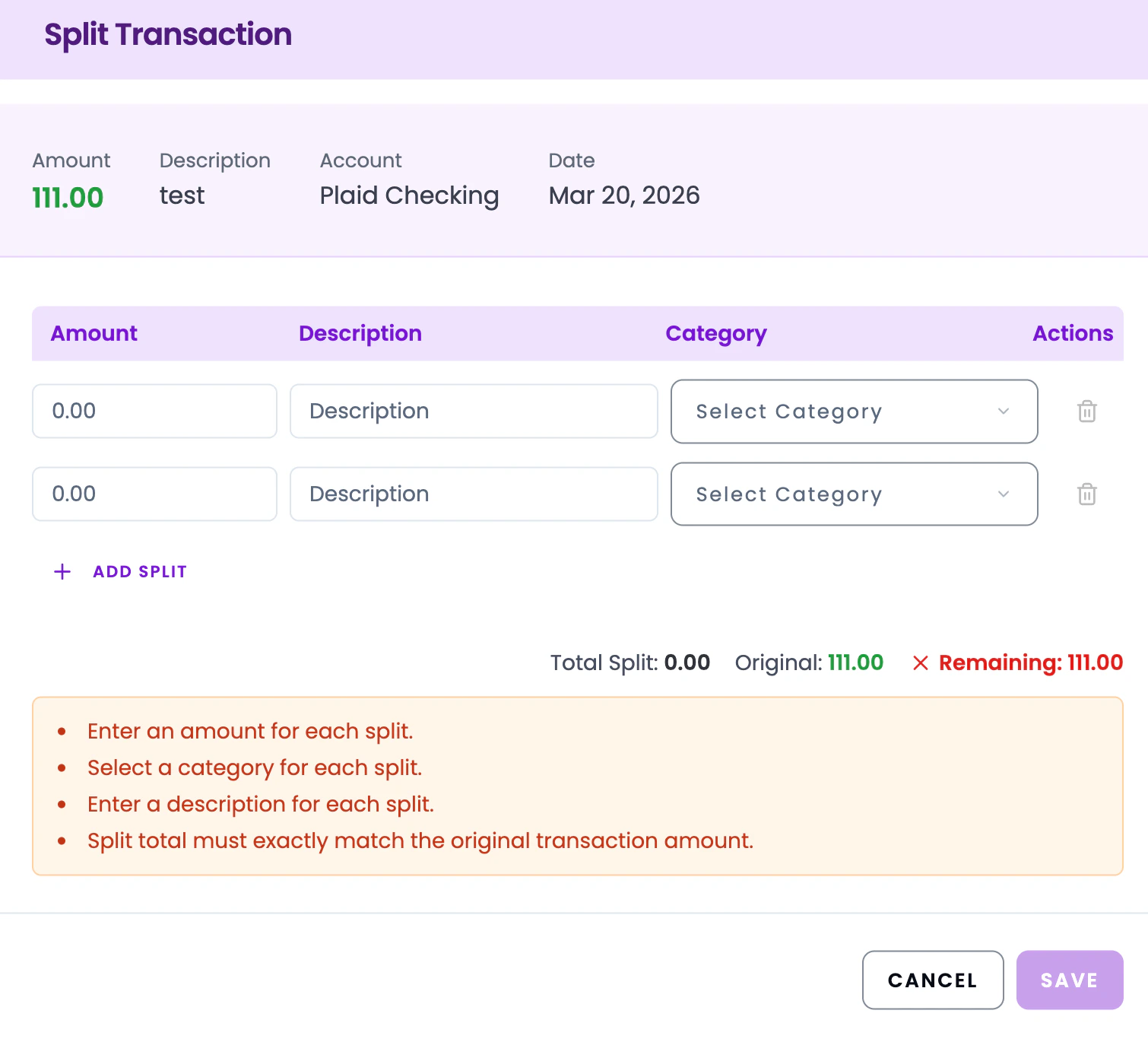
5
Save
Click Save. Each split line appears separately in your reports under its assigned category.
Can I split into more than two categories?
Can I split into more than two categories?
Yes - there’s no limit on the number of split lines.
Can I edit a split later?
Can I edit a split later?
Yes. Click the three-dot menu on the split transaction and select Update/View Split to change amounts or categories. To revert the split entirely, select Undo Split.