

How to connect
1
Open the connect modal
From the Dashboard, click the Connect Bank Account button. You can also go to Banking → Bank Accounts and click Connect Bank.
2
Search for your bank
In the Plaid window, search for your bank by name and select it.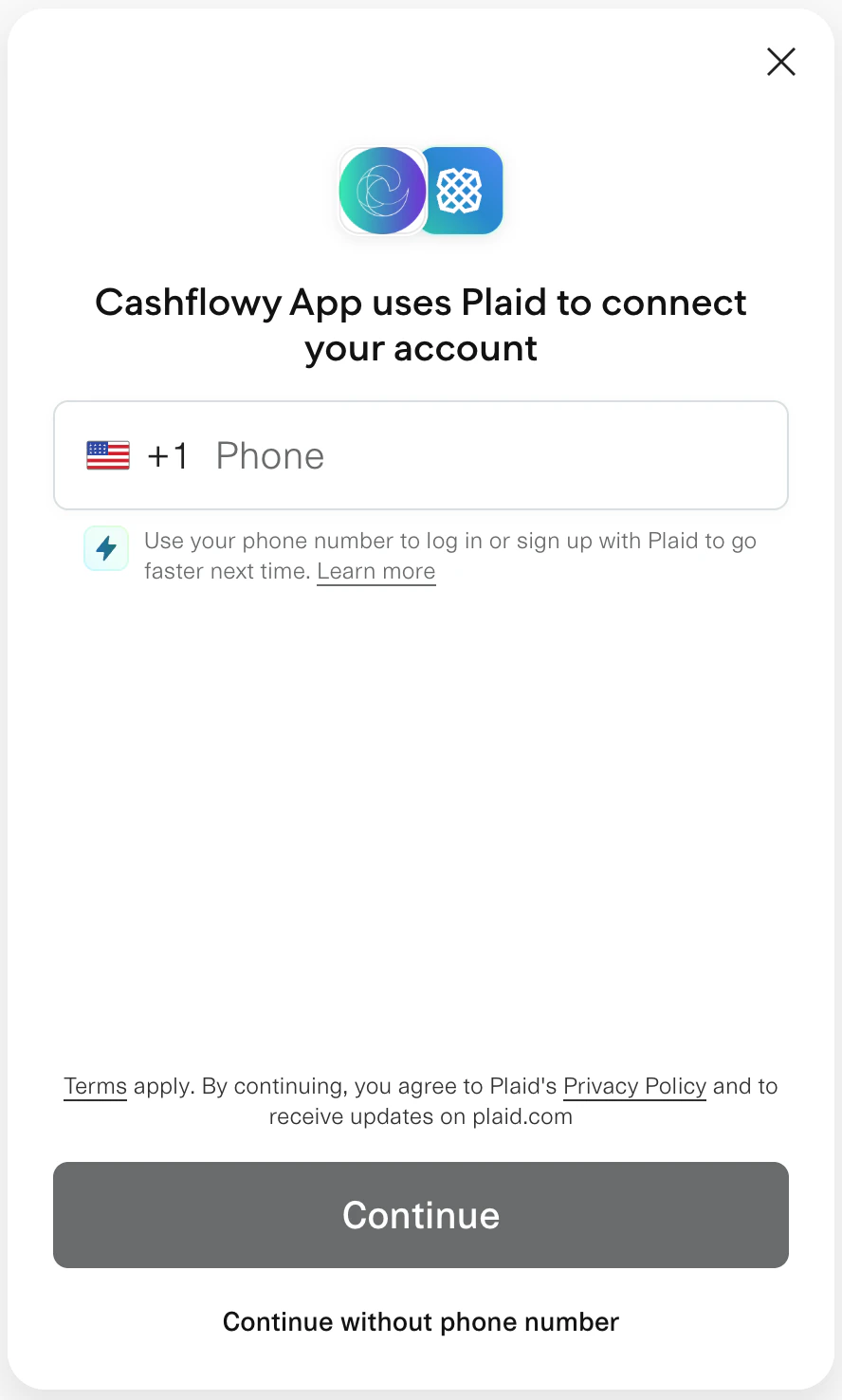
3
Log in to your bank
Enter your bank login credentials directly in the Plaid window. These are sent securely to your bank - Cashflowy never sees or stores them.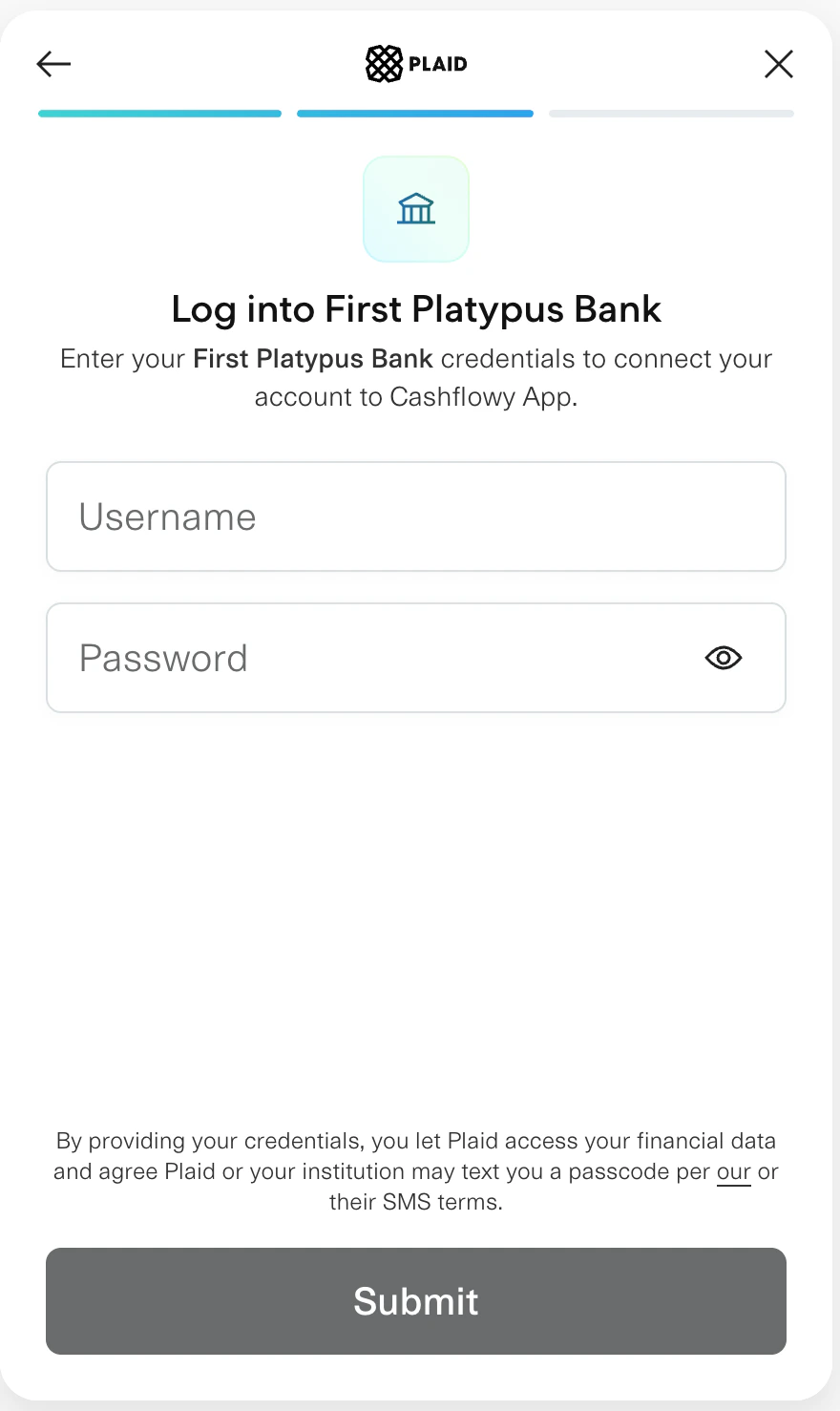
4
Select accounts
Choose which accounts to import (checking, savings, credit card, etc.).Note: Not all banks let you choose which accounts to connect during linking - some will connect all available accounts automatically. Once connected, you can unsync any account you don’t want from Banking → Bank Accounts.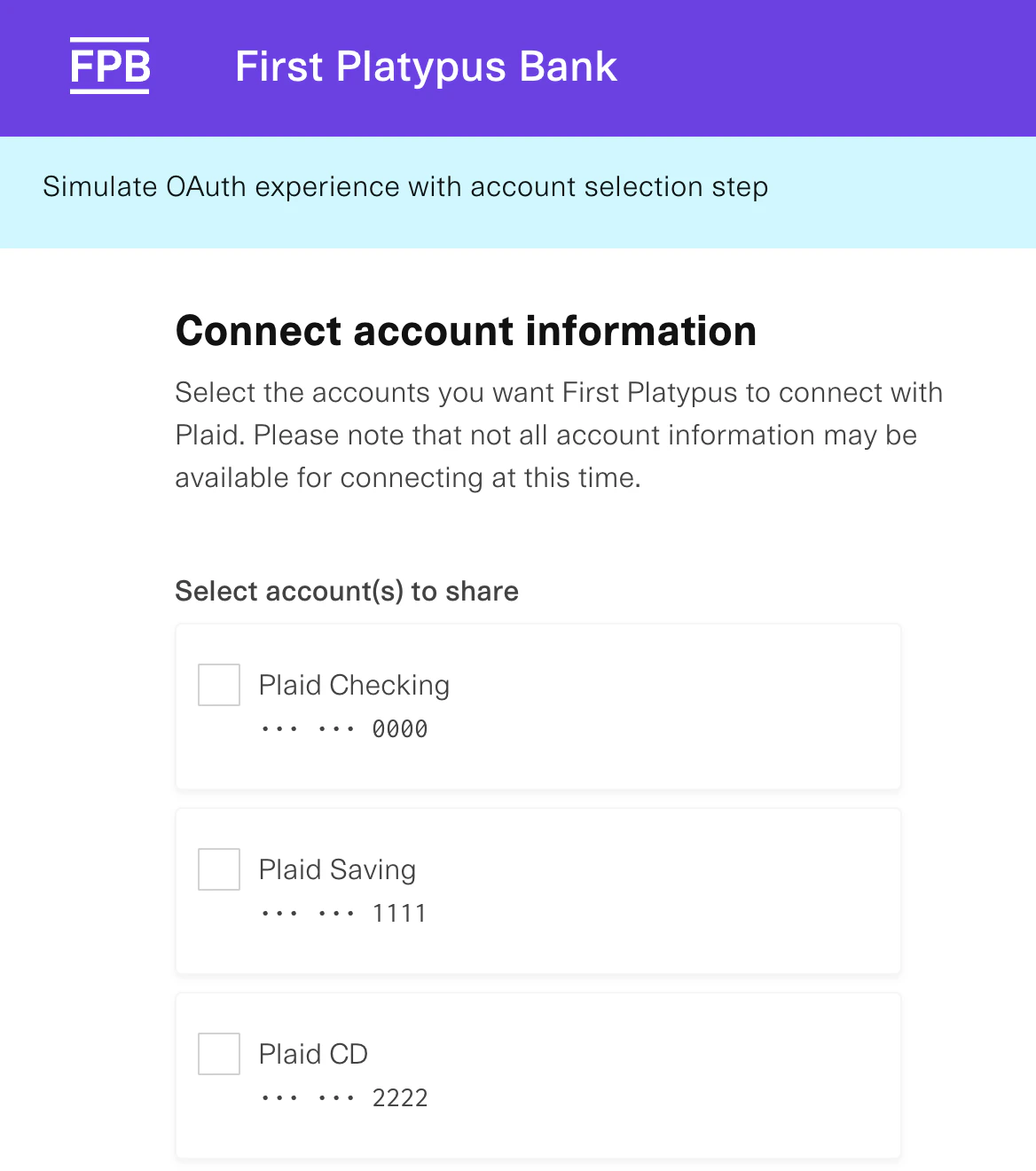
5
Done!
You’ll be redirected back to Cashflowy. Next step: configure your sync settings.
What happens after connecting?
- Transactions import automatically - Cashflowy pulls your recent history (the amount depends on your sync configuration)
- Daily syncs - new transactions are imported every day
- Auto-categorization - Cashflowy attempts to categorize transactions based on merchant info. Review any uncategorized ones.
Troubleshooting
My bank isn't listed
My bank isn't listed
Plaid supports thousands of institutions, but some smaller banks or credit unions may not be available. You can import statements manually as PDF, CSV, or XLSX files instead.
Connection failed or timed out
Connection failed or timed out
This is usually a temporary issue with your bank’s connection to Plaid. Wait a few minutes and try again. If it keeps happening, contact support.
My transactions aren't showing up
My transactions aren't showing up
After connecting, it can take up to 15 minutes for transactions to appear. Make sure you’ve configured your accounts — accounts in “Awaiting Configuration” status won’t sync.
How do I reconnect an expired link?
How do I reconnect an expired link?
Bank connections can expire over time. Go to Banking → Bank Accounts, find the account with a “Failed” status, and click Reconnect to re-authenticate with your bank.
Security note: Cashflowy uses read-only access to your bank accounts. We can view transactions but cannot move money or make changes to your accounts.