

Add your first client
1
Go to Clients
Navigate to Clients in the left sidebar.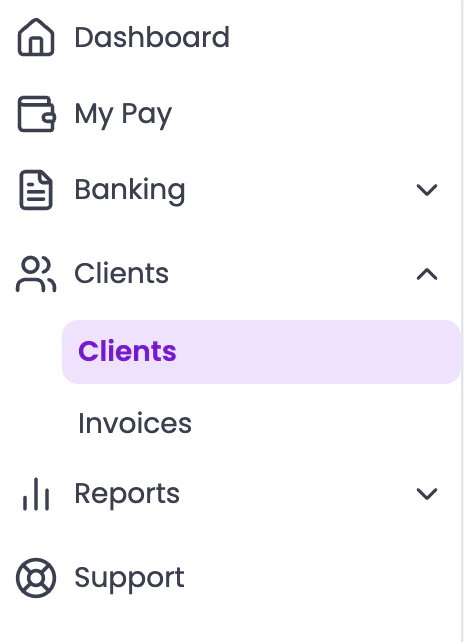
2
Click 'Add Client'
Click the Add Client button and fill in the client details: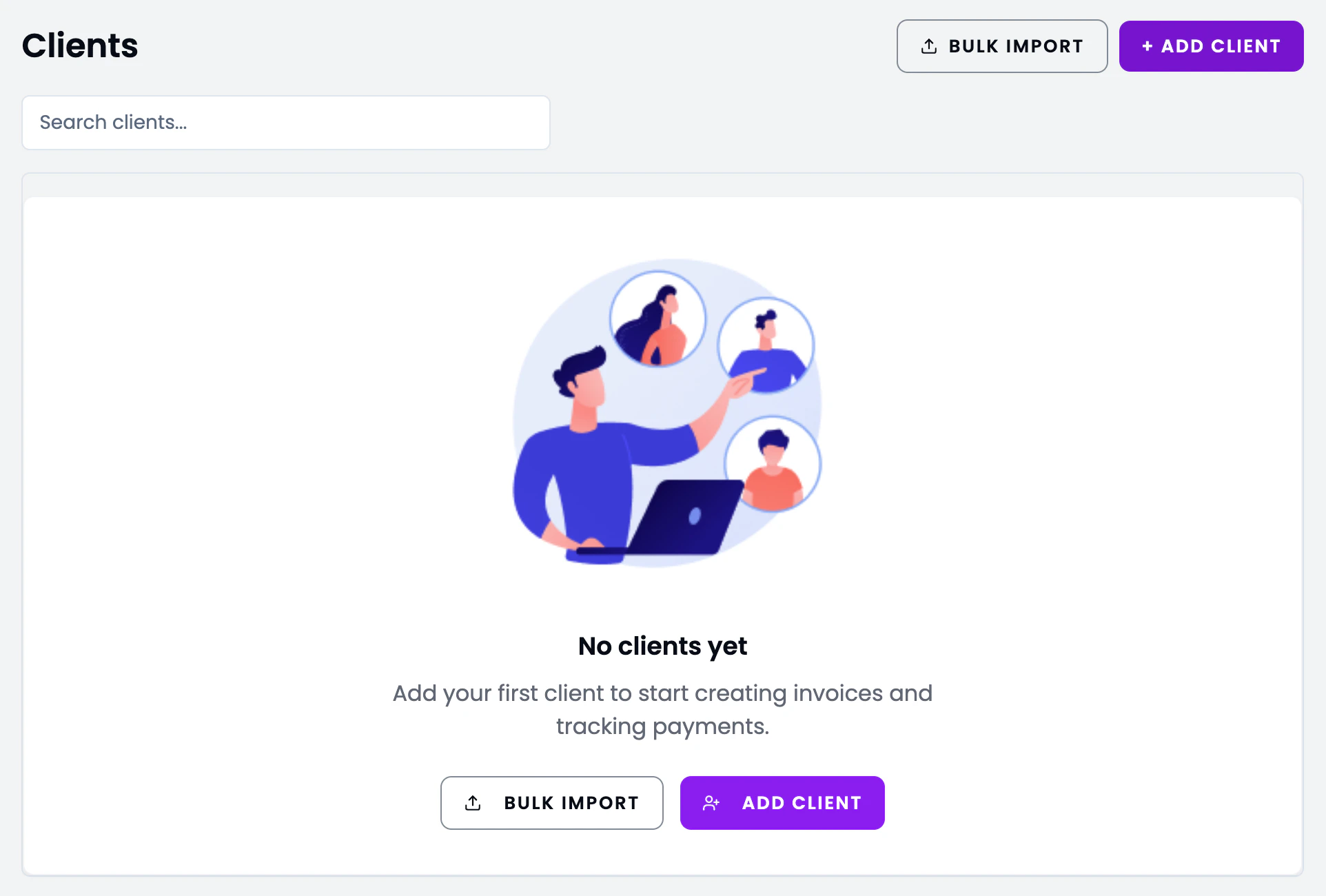
- Name - business or individual name
- Email - where invoices will be sent
- Address - billing address (optional, shown on invoices)
- Phone - contact number (optional)
3
Save the client
Click Save. The client is now available when creating invoices.
Create your first invoice
1
Go to Invoices
Navigate to Invoices in the left sidebar.
2
Click 'Create Invoice'
Click the Create Invoice button to start a new invoice.
3
Select a client
Choose the client you want to invoice from the dropdown.
4
Add line items
Add one or more line items with a description, quantity, and rate. Or select from your saved services.
5
Review and send
Preview the invoice, then choose to Save as Draft or Send it directly to your client via email.
What’s next?
Add Services
Create reusable services to speed up invoice creation.
Connect Stripe
Enable online payments so clients can pay with a click.