> ## Documentation Index
> Fetch the complete documentation index at: https://cashflowy.ai/docs/llms.txt
> Use this file to discover all available pages before exploring further.
# Connect Your Bank Account
> Cashflowy uses Plaid to securely connect to your bank. Plaid is trusted by thousands of financial apps and never stores your bank login credentials on our servers.
## How to connect
From the **Dashboard**, click the **Connect Bank Account** button. You can also go to **Banking** → **Bank Accounts** and click **Connect Bank**.
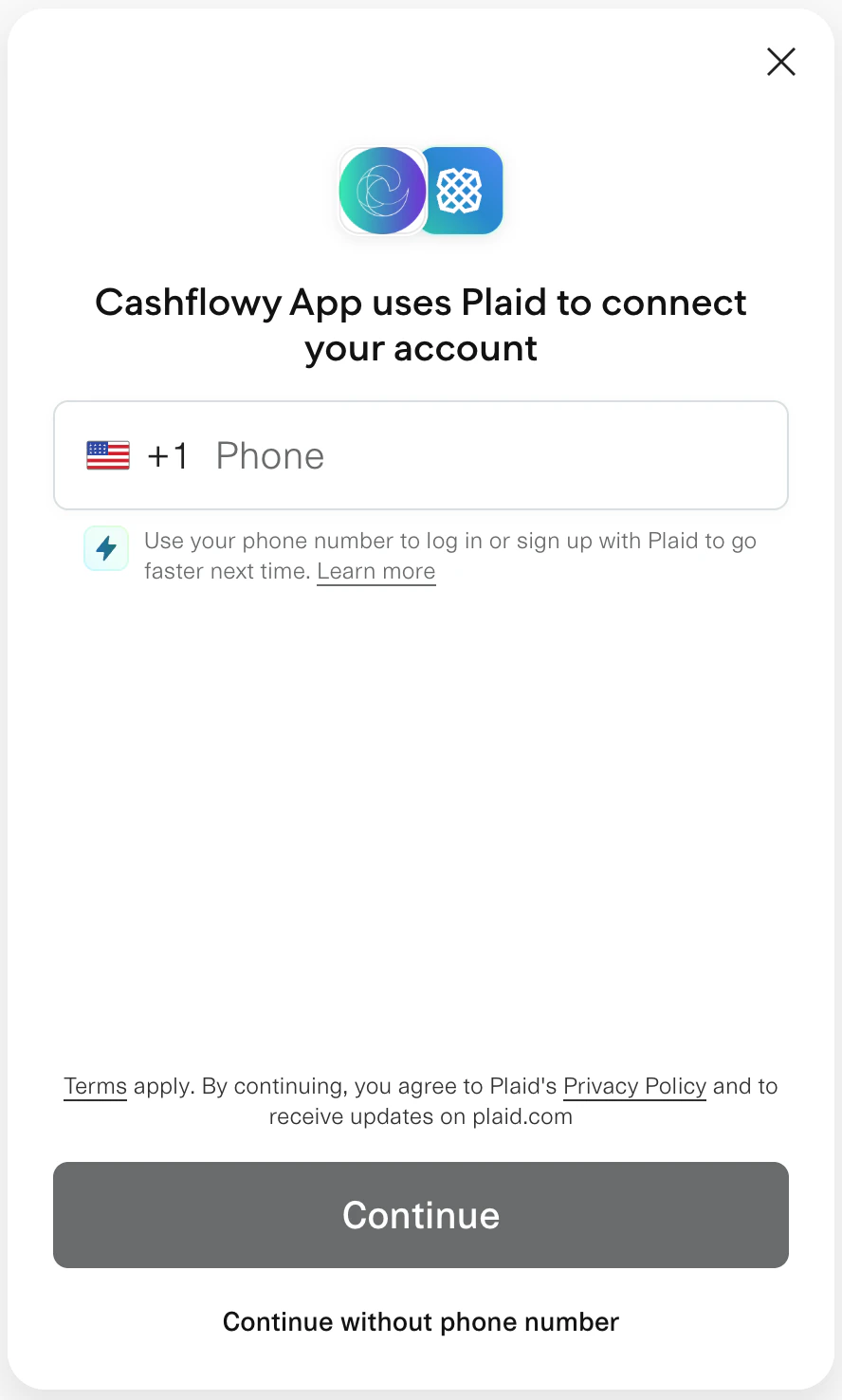
 In the Plaid window, search for your bank by name and select it.
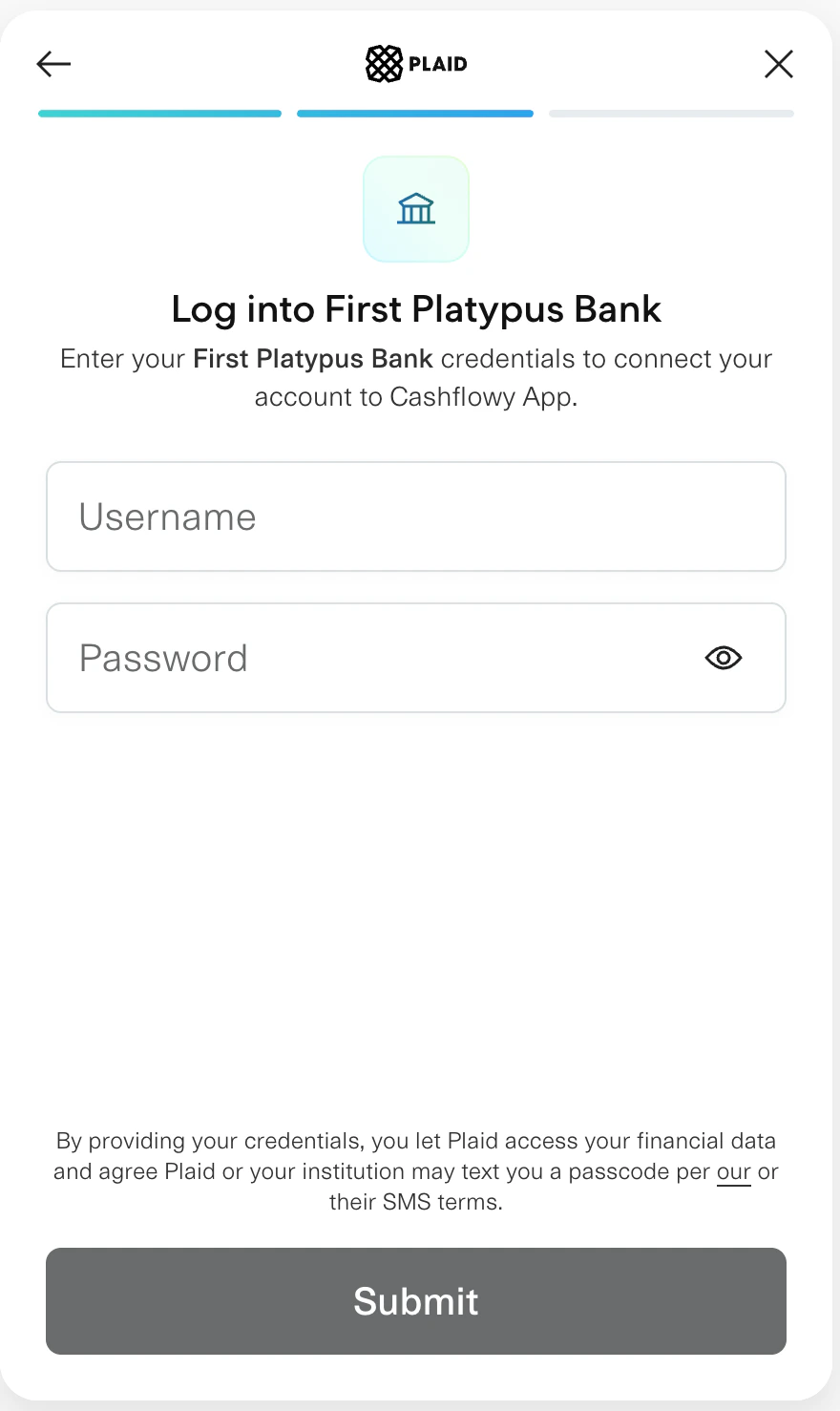
 Enter your bank login credentials directly in the Plaid window. These are sent securely to your bank - Cashflowy never sees or stores them.
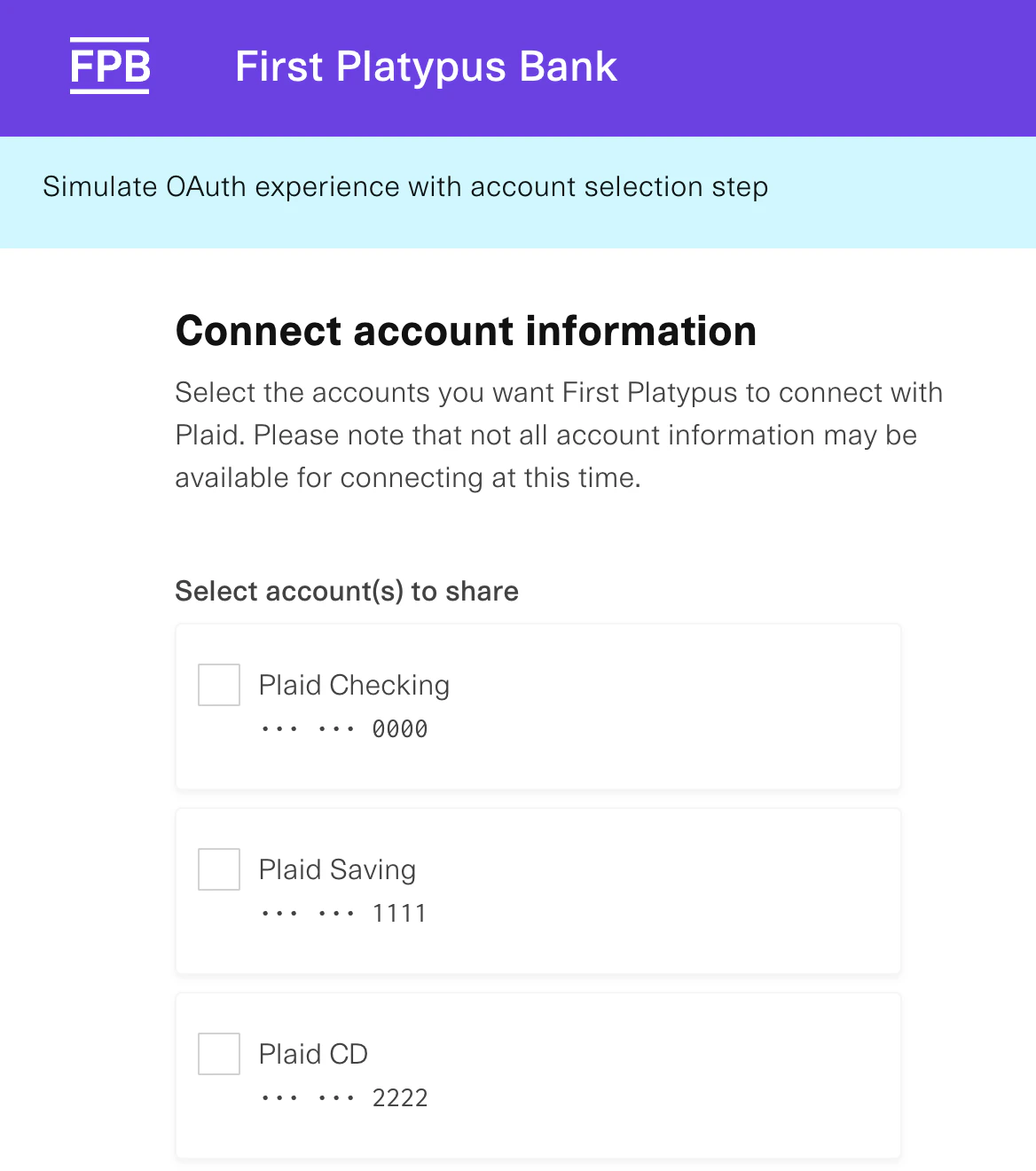
 Choose which accounts to import (checking, savings, credit card, etc.).
**Note:** *Not all banks let you choose which accounts to connect during linking - some will connect all available accounts automatically. Once connected, you can unsync any account you don't want from **Banking → Bank Accounts**.*
Choose which accounts to import (checking, savings, credit card, etc.).
**Note:** *Not all banks let you choose which accounts to connect during linking - some will connect all available accounts automatically. Once connected, you can unsync any account you don't want from **Banking → Bank Accounts**.*
 You'll be redirected back to Cashflowy. Next step: [configure your sync settings](/getting-started/configure-accounts).
## What happens after connecting?
* **Transactions import automatically** - Cashflowy pulls your recent history (the amount depends on your [sync configuration](/getting-started/configure-accounts))
* **Daily syncs** - new transactions are imported every day
* **Auto-categorization** - Cashflowy attempts to categorize transactions based on merchant info. [Review any uncategorized ones](/getting-started/categorize-transactions).
## Troubleshooting
Plaid supports thousands of institutions, but some smaller banks or credit unions may not be available. You can [import statements manually](/getting-started/import-statements) as PDF, CSV, or XLSX files instead.
This is usually a temporary issue with your bank's connection to Plaid. Wait a few minutes and try again. If it keeps happening, [contact support](https://go.crisp.chat/chat/embed/?website_id=733177f7-ad27-4876-9e2e-f011fa1f73a9).
After connecting, it can take up to 15 minutes for transactions to appear. Make sure you've [configured your accounts](/getting-started/configure-accounts) — accounts in "Awaiting Configuration" status won't sync.
Bank connections can expire over time. Go to **Banking** → **Bank Accounts**, find the account with a "Failed" status, and click **Reconnect** to re-authenticate with your bank.
**Security note:** Cashflowy uses read-only access to your bank accounts. We can view transactions but cannot move money or make changes to your accounts.
You'll be redirected back to Cashflowy. Next step: [configure your sync settings](/getting-started/configure-accounts).
## What happens after connecting?
* **Transactions import automatically** - Cashflowy pulls your recent history (the amount depends on your [sync configuration](/getting-started/configure-accounts))
* **Daily syncs** - new transactions are imported every day
* **Auto-categorization** - Cashflowy attempts to categorize transactions based on merchant info. [Review any uncategorized ones](/getting-started/categorize-transactions).
## Troubleshooting
Plaid supports thousands of institutions, but some smaller banks or credit unions may not be available. You can [import statements manually](/getting-started/import-statements) as PDF, CSV, or XLSX files instead.
This is usually a temporary issue with your bank's connection to Plaid. Wait a few minutes and try again. If it keeps happening, [contact support](https://go.crisp.chat/chat/embed/?website_id=733177f7-ad27-4876-9e2e-f011fa1f73a9).
After connecting, it can take up to 15 minutes for transactions to appear. Make sure you've [configured your accounts](/getting-started/configure-accounts) — accounts in "Awaiting Configuration" status won't sync.
Bank connections can expire over time. Go to **Banking** → **Bank Accounts**, find the account with a "Failed" status, and click **Reconnect** to re-authenticate with your bank.
**Security note:** Cashflowy uses read-only access to your bank accounts. We can view transactions but cannot move money or make changes to your accounts.