> ## Documentation Index
> Fetch the complete documentation index at: https://cashflowy.ai/docs/llms.txt
> Use this file to discover all available pages before exploring further.
# Managing Transactions
> View, filter, categorize, and export your transactions in Cashflowy.
The Transactions page is your central hub for all financial activity. Every bank transaction, manual entry, split, and journal entry lives here.
## Filtering and searching
Use the filter panel at the top to narrow down your transactions:
| Filter | What it does |
| -------------- | ------------------------------------------------------------ |
| **Account** | Show transactions from specific bank accounts (multi-select) |
| **Date range** | Filter to a specific time period |
| **Category** | Show only transactions in certain categories (multi-select) |
| **Search** | Find transactions by merchant name or description |
## Transaction actions
Available in a few places depending on what you want to do:
On the transaction row:
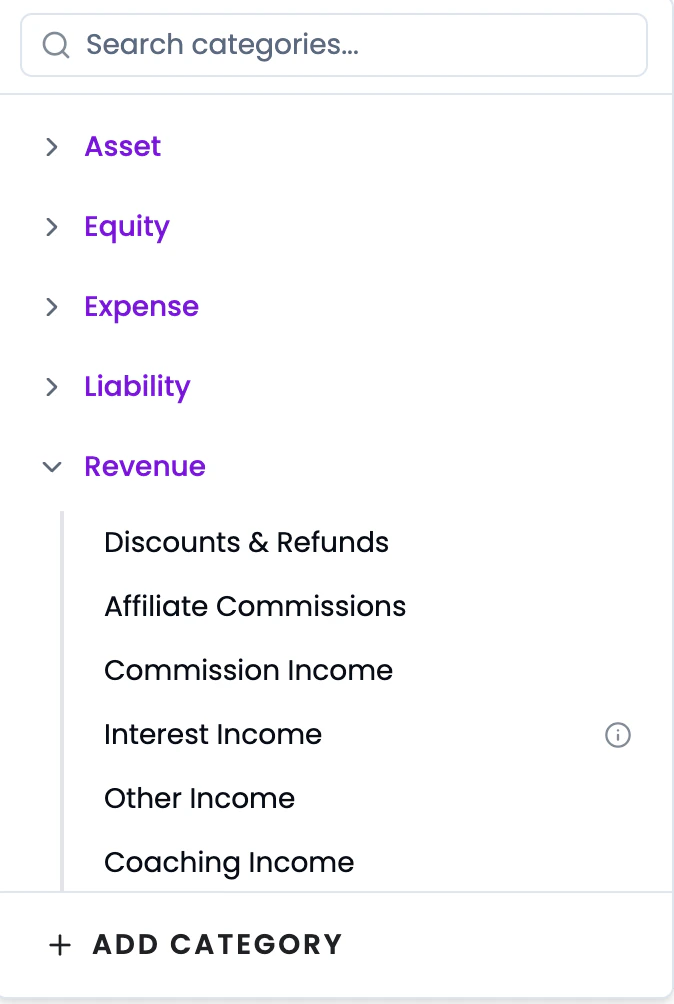
* **Edit Category** - click the **Category** dropdown on the row to reassign
 Three-dot menu on the row:
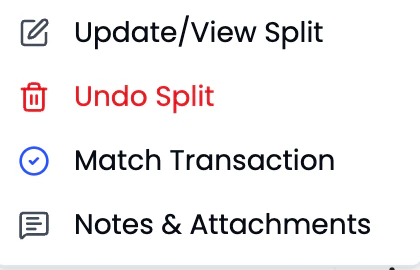
* **Update/View Split** - edit an existing split
* **Undo Split** - revert a split
* **Match Transaction** - link to an opposite transaction
* **Notes & Attachments** - add notes or attach receipts
Three-dot menu on the row:
* **Update/View Split** - edit an existing split
* **Undo Split** - revert a split
* **Match Transaction** - link to an opposite transaction
* **Notes & Attachments** - add notes or attach receipts
 Add Transaction button (top right):
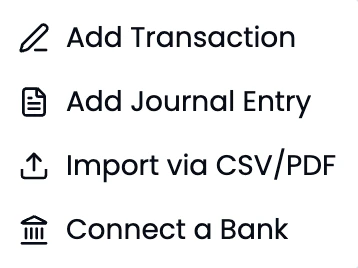
* **Add Transaction** - manual transaction entry
* **Add Journal Entry** - double-entry adjustment
* **Import via CSV/PDF** - bulk upload statements
* **Connect a Bank** - add a new bank
Add Transaction button (top right):
* **Add Transaction** - manual transaction entry
* **Add Journal Entry** - double-entry adjustment
* **Import via CSV/PDF** - bulk upload statements
* **Connect a Bank** - add a new bank
 ## Syncing new transactions
Cashflowy automatically syncs your connected bank accounts daily, so new transactions appear on their own. \
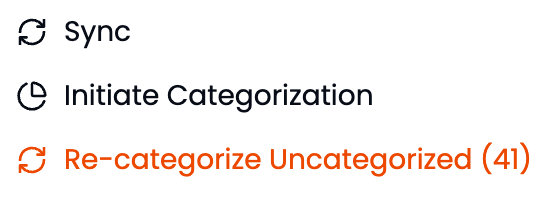
If you want to pull in the latest transactions right away, click the **three-dot menu** at the top right of the Transactions page and select **Sync**.
## Syncing new transactions
Cashflowy automatically syncs your connected bank accounts daily, so new transactions appear on their own. \
If you want to pull in the latest transactions right away, click the **three-dot menu** at the top right of the Transactions page and select **Sync**.
 ## Exporting
Click **Export** to download your filtered transactions as CSV or Excel. Great for sharing with your accountant or doing analysis in a spreadsheet.
**Pro tip:** Set your filters to "This Month" + "Uncategorized" for a quick weekly review of new transactions that need attention.
## Exporting
Click **Export** to download your filtered transactions as CSV or Excel. Great for sharing with your accountant or doing analysis in a spreadsheet.
**Pro tip:** Set your filters to "This Month" + "Uncategorized" for a quick weekly review of new transactions that need attention.