> ## Documentation Index
> Fetch the complete documentation index at: https://cashflowy.ai/docs/llms.txt
> Use this file to discover all available pages before exploring further.
# Split Transactions
> Divide a single bank transaction across multiple categories when one payment covers different expense types.
Sometimes one bank transaction covers multiple categories — like a \$500 office store charge that's partly supplies and partly team snacks. Splitting lets you assign different amounts to different categories.
## How to split
Go to **Banking** → **Transactions** and click on the transaction.
Click the **three-dot** menu on the transaction row and select **Split Transaction**.
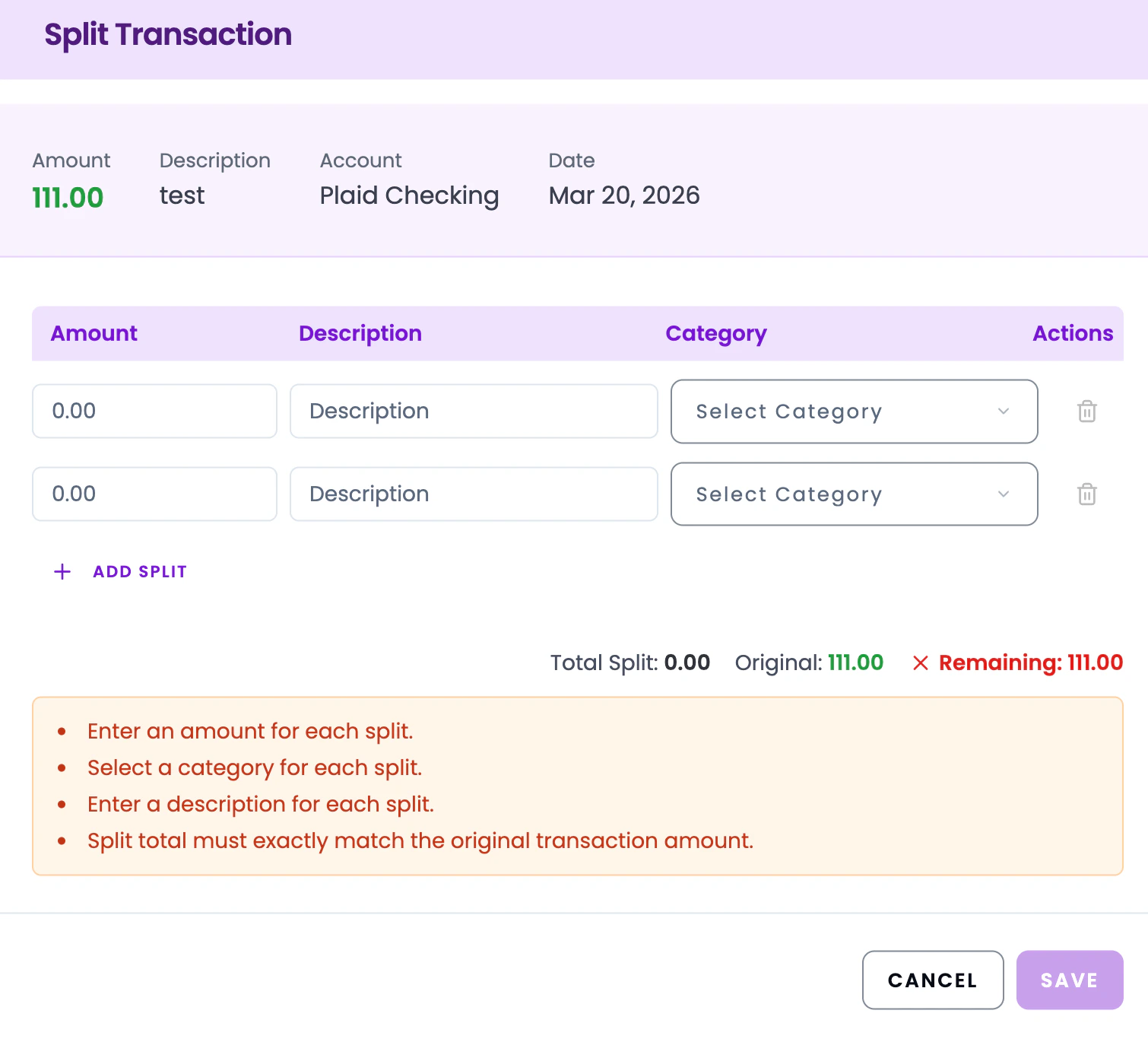
 For each portion, enter:
* **Amount** - how much goes to this category
* **Category** - which category to assign
* **Description** - a note for your records
* Click **+ Add Split** to add more split lines as needed.
Example for a \$500 office store charge:
| Amount | Category | Description |
| ------ | --------------------- | ----------------------- |
| \$300 | Office Supplies | Printer paper and toner |
| \$200 | Meals & Entertainment | Team lunch supplies |
Split amounts must exactly match the original transaction total. The modal shows a live counter - **Total Split**, **Original**, and **Remaining** - so you can track the balance as you add lines. The **Save** button stays disabled until the remaining balance is zero.
For each portion, enter:
* **Amount** - how much goes to this category
* **Category** - which category to assign
* **Description** - a note for your records
* Click **+ Add Split** to add more split lines as needed.
Example for a \$500 office store charge:
| Amount | Category | Description |
| ------ | --------------------- | ----------------------- |
| \$300 | Office Supplies | Printer paper and toner |
| \$200 | Meals & Entertainment | Team lunch supplies |
Split amounts must exactly match the original transaction total. The modal shows a live counter - **Total Split**, **Original**, and **Remaining** - so you can track the balance as you add lines. The **Save** button stays disabled until the remaining balance is zero.
 Click **Save**. Each split line appears separately in your reports under its assigned category.
Yes - there's no limit on the number of split lines.
Yes. Click the **three-dot** menu on the split transaction and select **Update/View Split** to change amounts or categories. To revert the split entirely, select **Undo Split**.
Click **Save**. Each split line appears separately in your reports under its assigned category.
Yes - there's no limit on the number of split lines.
Yes. Click the **three-dot** menu on the split transaction and select **Update/View Split** to change amounts or categories. To revert the split entirely, select **Undo Split**.