> ## Documentation Index
> Fetch the complete documentation index at: https://cashflowy.ai/docs/llms.txt
> Use this file to discover all available pages before exploring further.
# Match Transactions
> Link two related bank transactions together - useful for transfers between your connected accounts.
Matching links two opposite bank transactions together. This is commonly used when:
* A **transfer** between two connected accounts shows up as two separate transactions (a withdrawal from one, a deposit into another)
* Two transactions represent the **same underlying event** from different sides
## How to match
Go to **Banking** → **Transactions** and click on the transaction you want to match.
Click the **three-dot** menu on the transaction row and select Match Transaction.
 Cashflowy suggests potential matches based on similar amounts and dates. Review the candidates.
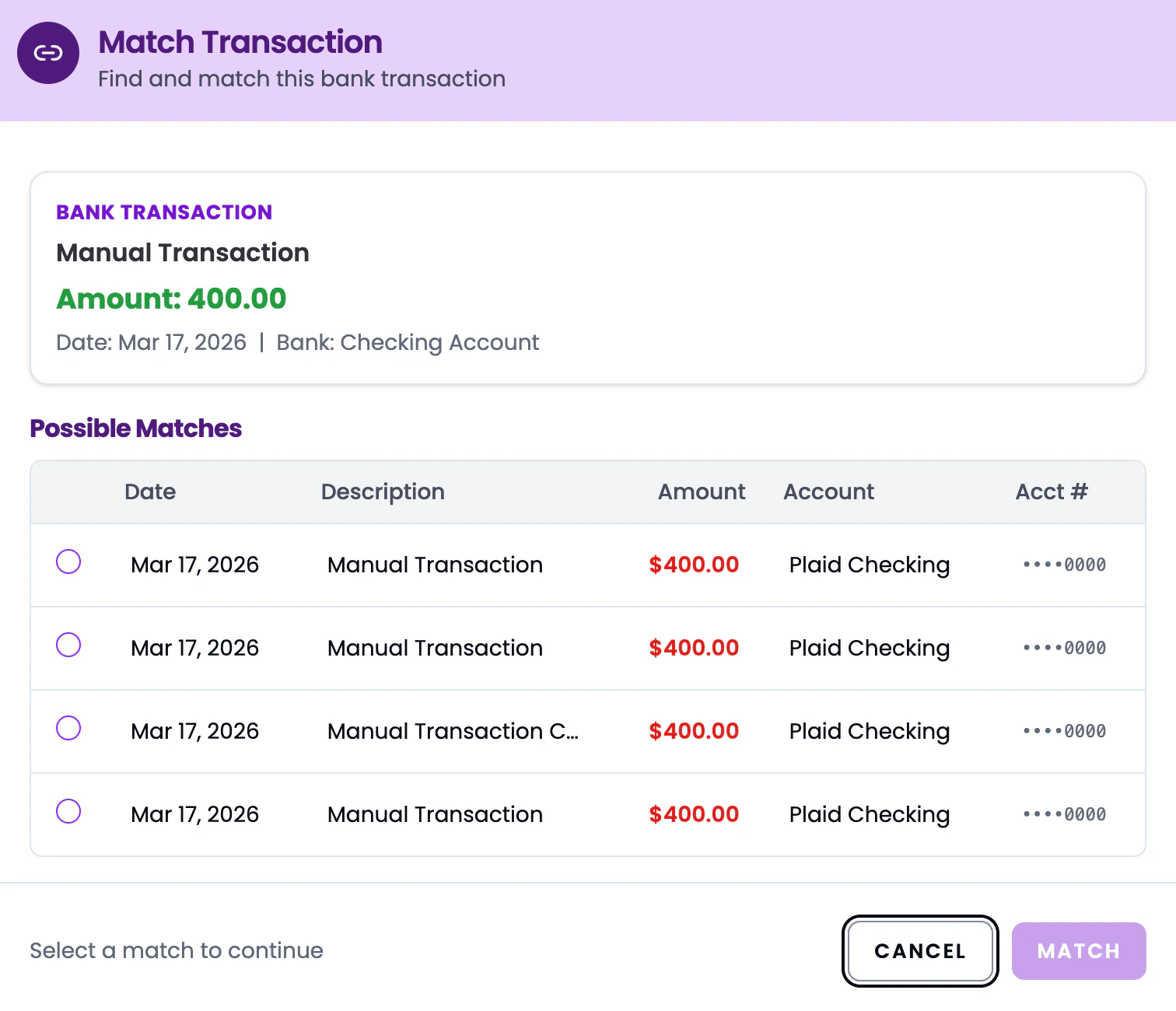 Click on the correct match from the suggestions. If none of the suggestions are right, you can search for a specific transaction.
 Click **Confirm Match**. The two transactions are now linked.
 ## Unmatching
Changed your mind? Click the **three-dot** menu on the matched transaction and select **Unmatch Transaction** to break the link. Both transactions revert to their original state.
## Unmatching
Changed your mind? Click the **three-dot** menu on the matched transaction and select **Unmatch Transaction** to break the link. Both transactions revert to their original state.
 **Matching vs. categorizing:** Matching links two transactions together. Categorizing assigns an expense or income type. You can do both - match a transaction pair AND have them categorized.